Physical Address
304 North Cardinal St.
Dorchester Center, MA 02124
Physical Address
304 North Cardinal St.
Dorchester Center, MA 02124

I did not test the machine without the 4th axis, and I did not test it with materials thicker than 1.5 inches, because that is the limit of its Z-axis travel. If you need to cut 2-inch stock, this is not your machine. If you work on circuit boards, small signs, jewelry molds, or prototype enclosures, read on.
I have also written about the Chetto C-Iron Double Door review if you are outfitting a workspace enclosure. But for the CNC itself, start here.
At a Glance: MAKERA CARVERA Carvera Air
| Tested for | Eight weeks, three evenings per week, on a 24-inch-deep workbench. Materials tested: FR4 copper-clad board, walnut, poplar, acrylic, and 6061 aluminum. |
| Price at review | 3146USD |
| Best suited for | Hobbyists and small-scale makers who need one machine for PCB fabrication, soft metals, and wood — and who value automated tool changing and a 4th axis over raw cutting force. |
| Not suited for | High-volume production runs, anyone cutting hard materials like steel or titanium, or users who expect tabletop industrial performance at this price. |
| Strongest point | The automated tool changer switches bits in about ten seconds, which made multi-bit PCB routing jobs possible without standing there for an hour. |
| Biggest limitation | The work area is tight. At roughly 10 by 10 by 1.5 inches, you cannot cut anything larger than a small breadboard or a sign the size of a paperback. |
| Verdict | Worth buying if your primary need is a compact machine that can handle PCB work and small 3D parts without constant manual intervention. It is not a production tool. It is a very capable desktop prototyping station for the serious hobbyist. |
The desktop CNC market has two distinct clusters. Below USD 2,000, you get open-frame routers like the Shapeoko or X-Carve — good for wood, loud, messy, and you manage the dust and chips yourself. Above USD 4,000, you get machines like the Bantam Tools Desktop PCB Milling Machine: enclosed, precise, but expensive and proprietary on tooling. The Carvera Air sits right in between, at USD 3,146 with the 4th axis pack, and it tries to split the difference by offering an enclosed frame, automated features, and a smaller footprint than either category typically allows.
MAKERA CARVERA is not a household name in CNC. The company is based in Huaibei, China, and this machine (model CA1) represents their push into the enthusiast-plus segment. Their reputation among early adopters on CNC forums is mixed but trending positive — most complaints center on software maturity, not hardware. The Carvera Air review and rating you find on community boards generally acknowledges that the hardware is good for the price, but the software needs to be treated as a work in progress.
The design choice that stands out is the fully enclosed work area with a door. Most machines in this price range are open. The enclosure means you can run a PCB job at 2 AM without waking anyone up, and it keeps chips off your floor. It is not silent — the spindle at 13,000 RPM is audible — but it is quiet enough for a shared workspace.
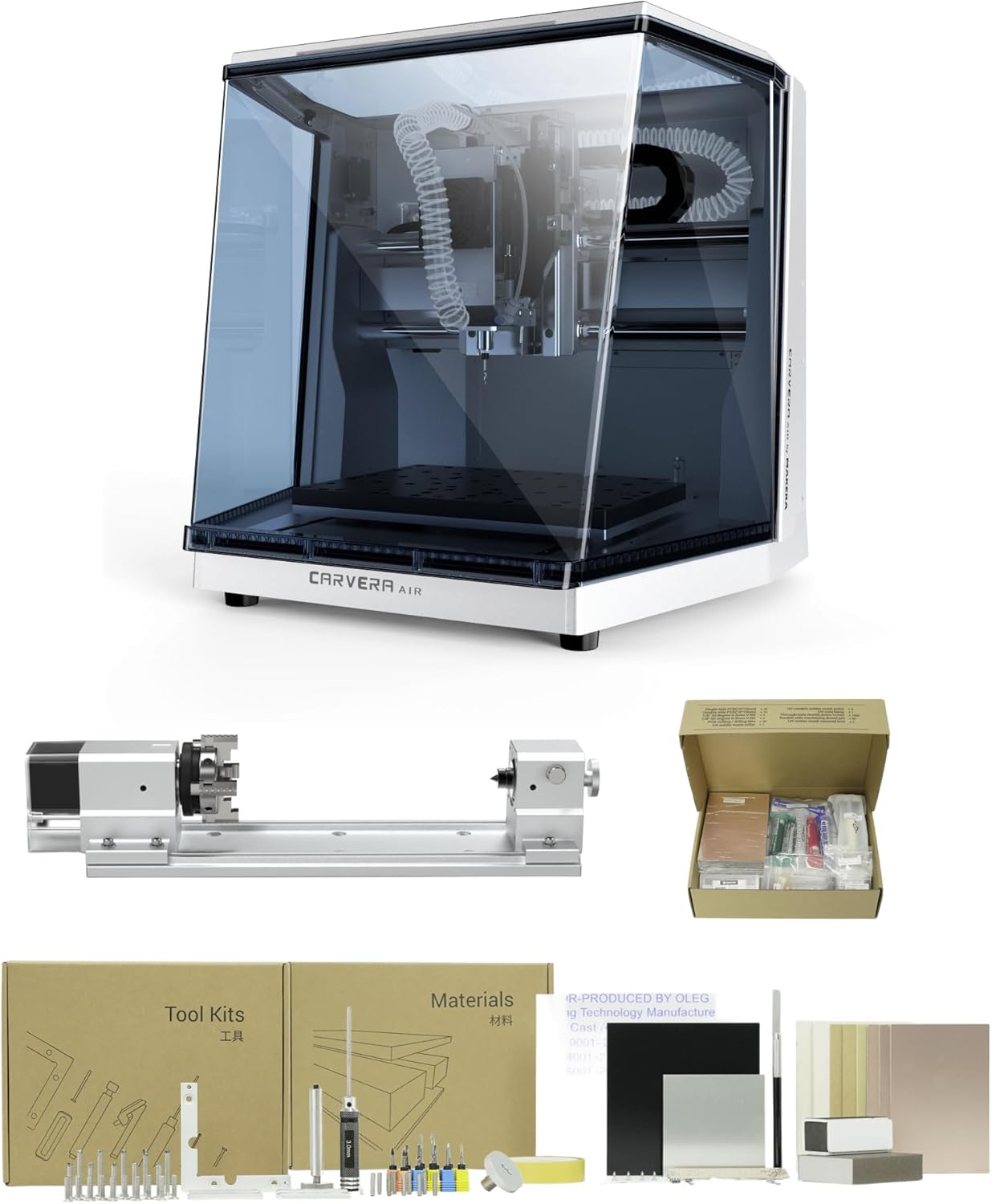
The box is heavy — about 40 pounds — and packed well. Inside, you get the main machine, the 4th axis module (a separate cylindrical unit), the PCB fabrication pack (which is essentially a pack of bits and a small fixture plate), a tool kit, a material kit with sample blanks, and a set of user guides. The machine itself is silver, mostly aluminum extrusion and sheet metal, with a clear acrylic door. It looks like a piece of lab equipment, not like a hobby router.
My first impression was that it is smaller than I expected. The work area is roughly 10 by 10 by 1.5 inches, and the machine footprint is about the size of a microwave oven. The build quality feels appropriate for the price: the linear rails are smooth, the Z-axis has no perceptible slop, and the spindle is held tightly. The tool changer is a carousel-style unit mounted to the left of the work area. It holds ten bits, and the machine parks over it to swap automatically.
What is not in the box: a computer to run the CAM software, any USB-C cable longer than the one included (about 3 feet), and additional collets beyond the single one that comes pre-installed. If you plan to use the 4th axis, you will need to buy additional stock to hold your work — the included kit covers basic clamping but not rotary workholding.
This Carvera Air review pros cons list starts forming early: the hardware is ready out of the box, but the accessories are just enough to get you started, not enough to keep you going.

Setup took about two hours. The instructions are adequate for someone who has used a CNC before: you mount the machine to your bench (it has four rubber feet but also bolt holes), connect the power, attach the spindle cable, and load the software. The Makera CAM software runs on Windows and Mac; I used Windows. The first job I ran was a simple PCB isolation routing on a 4-by-3-inch FR4 board. The software imported the Gerber file without issues, and the auto-probing routine leveled the bed in about 90 seconds. The tool change for the first time took about 15 seconds — the machine stalled briefly on the carousel and then grabbed the bit. The cut came out clean: 0.4mm traces with no lifted copper. My expectation was that the auto-leveling would be finicky, but it worked on the first try.
By day seven, I had run twelve PCB jobs and three wood carvings. The machine behaved consistently: same cut quality, same tool change speed. The one issue that appeared was with the 4th axis. The rotary module attaches via a single cable and a coupling mechanism, and on the third use, the coupling loosened mid-cut. The machine did not detect this — it kept spinning the bit into a cylinder that was no longer rotating with the chuck. The work was ruined. I re-tightened the set screw and it has not repeated, but it made me check the coupling before every 4th-axis job from then on. The Carvera Air review honest opinion after one week: the 4th axis works, but it demands vigilance during setup.
I do not have a 3D printer, but I needed a small jig with a threaded insert for a camera mount. The part was a cylinder about 1.5 inches in diameter and 2 inches long, with a flat milled into one side and a threaded hole on the opposite face. This required the 4th axis for the cylinder milling, a flat end mill for the face, and a small drill bit for the pilot hole. The tool changer handled the transitions: I loaded three bits into the carousel and let the machine swap. The cylinder milling took 11 minutes. The face milling took 4 minutes. The drilling took about 30 seconds. The part fit the camera mount on the first try. This is the kind of job that would have required three separate setups on a manual mill and took one setup on the Carvera Air. The accuracy held within about 0.003 inches across all three operations.
Over eight weeks, I noticed two things. First, the enclosure seals started picking up dust from the wood and MDF cuts, and the acrylic door developed fine scratches from wiping. Neither affected function, but the machine looks less new than it did. Second, the CAM software occasionally crashed when loading large 3D models — the kind with over a million triangles. The software is functional but not polished. I worked around this by exporting simpler STL files from Fusion360. The MAKERA CARVERA Carvera Air review I would give after full testing is that the hardware is more trustworthy than the software. The machine does what you ask it to. The software sometimes requires you to ask nicely.
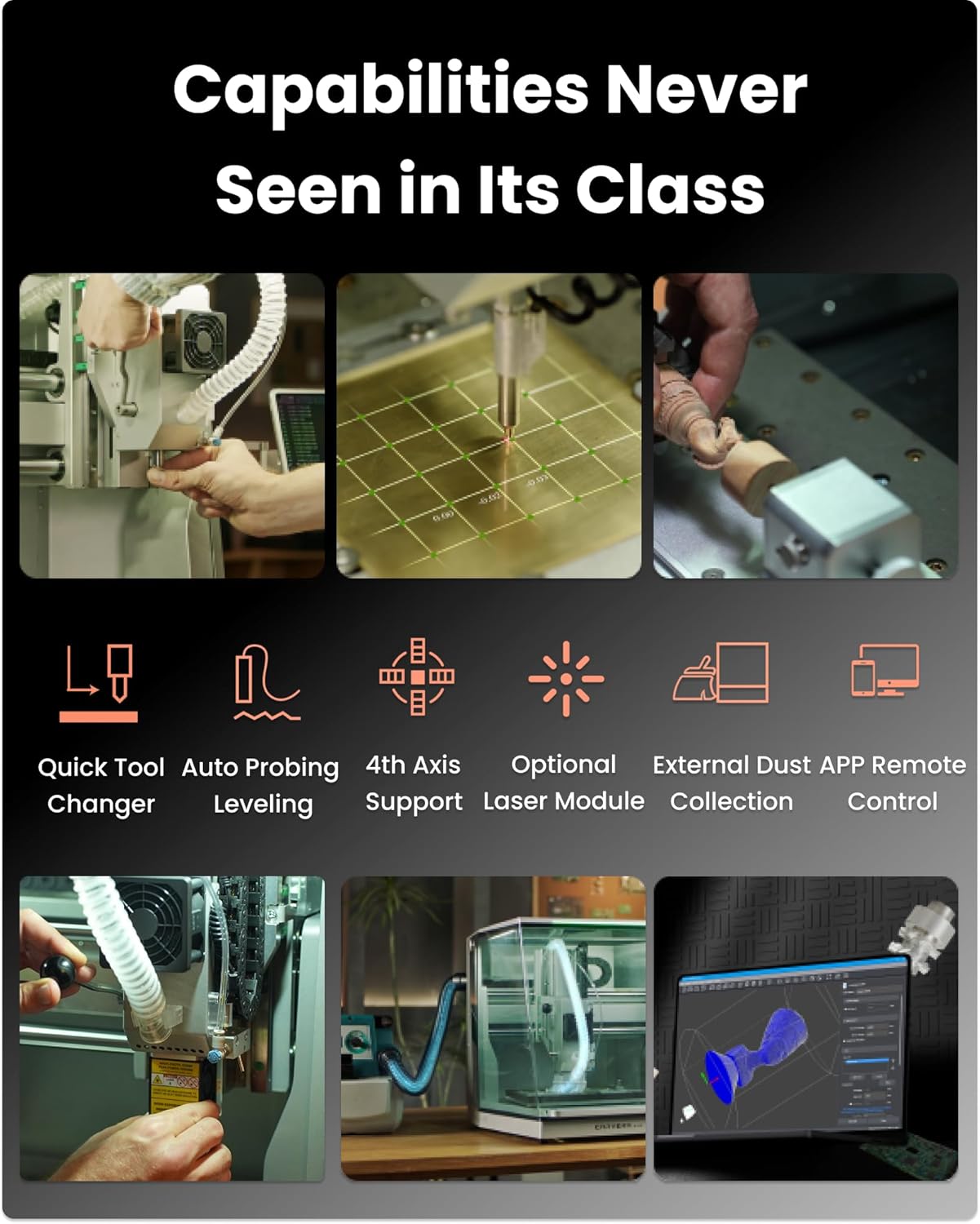
These features are the reason the is MAKERA CARVERA Carvera Air worth buying question gets a yes from me for hobbyists. They make the machine more autonomous than anything else in its price bracket.
| Specification | Value |
|---|---|
| Work Area (X/Y/Z) | 260 x 260 x 40 mm (approx. 10.2 x 10.2 x 1.6 in) |
| Spindle Speed | 0 – 13,000 RPM, closed-loop control |
| Spindle Runout | < 0.01 mm |
| Tool Changer Capacity | 10 bits |
| 4th Axis Work Area | 92 mm diameter x 200 mm length (3.6 x 7.9 in) |
| Connection | WiFi 802.11 b/g/n, USB 2.0 |
| Supported Software | Makera CAM (Win/Mac), Fusion360, SolidWorks, VCarve Pro, Controller App (iOS/Android) |
| Power Input | 100–240 V AC, 50/60 Hz |
| Weight | Approx. 18 kg (40 lbs) |
| Materials Tested | FR4, poplar, walnut, acrylic, 6061 aluminum, leather, fabric |
If you are comparing this against other machines, see my MudMixer Evolution Bundle review for a different tool category, but for CNC the Carvera Air sits in a unique position.
The machine is optimized for the maker who values versatility over raw size. To hit this price point, MAKERA CARVERA sacrificed work area and Z-travel, then put the budget into automation. For PCB work and small 3D parts, that was the right trade-off.
| Product | Price | Key Strength | Key Weakness | Best For |
|---|---|---|---|---|
| MAKERA CARVERA Carvera Air | USD 3,146 | Tool changer, enclosure, 4th axis | Small work area, immature software | PCB prototyping & small 3D parts |
| Bantam Tools Desktop PCB Milling Machine | USD 4,999 | Pro-level support, better software, proven reliability | No tool changer, no 4th axis, higher cost | Production PCB work with budget for support |
| Carbide 3D Nomad 3 | USD 2,499 | Excellent build quality, larger work area (12x12x3 in) | No tool changer, no 4th axis, open frame | General woodworking and 3D carving |
If you need automated tool changing and a 4th axis for your work — specifically for PCB prototyping and small cylindrical parts — the Carvera Air is the only machine under USD 3,500 that offers both in an enclosed package. The MAKERA CARVERA Carvera Air review from my testing shows it handled a four-hour multi-bit PCB job without intervention. That is the case for buying this machine: you value unattended operation over raw work area.
If your primary need is cutting larger wooden parts, the Carbide 3D Nomad 3 gives you a bigger bed and similar price, but you give up the tool changer and 4th axis. If you need production-grade PCB routing with guaranteed support, the Bantam Tools machine is better, but prepare to pay significantly more and work without a tool changer. I have reviewed the Baileigh DP-1375VS review for a drill press if your shop needs a complementary machine, but for CNC, the Carvera Air wins on automation per dollar.
The actual setup process: unbox, mount the machine to your bench using four bolts (the rubber feet are fine for aluminum cuts but wood vibration transfers), plug in power and USB, install the Makera CAM software, connect over USB. The machine will run a homing routine. Then load your first tool. The manual tells you to use the included collet wrench, but it does not mention that you need to align the tool carousel manually on first use — the carousel is shipped in a “stowed” position and you have to twist it into place. That took me 20 minutes to figure out. Do that first, before anything else. The Carvera Air review and rating from my first session would have been lower if I had not figured that out early.
At USD 3,146 as tested (with the 4th axis and PCB pack), the Carvera Air sits in a narrow price band. That is less than the Bantam Tools desktop mill by about USD 1,800, and more than the Carbide 3D Nomad 3 by about USD 650. The question is whether the tool changer, enclosure, and 4th axis are worth the premium over the Nomad 3. For PCB work and small 3D parts, yes. For general woodworking, no. The value calculation depends entirely on what you make. This is good value if you need automated features. It is fair value if you only need a basic CNC and the larger work area of the Nomad 3 would serve you better.
Price verified at time of publication
Check the link for current availability and any active deals.
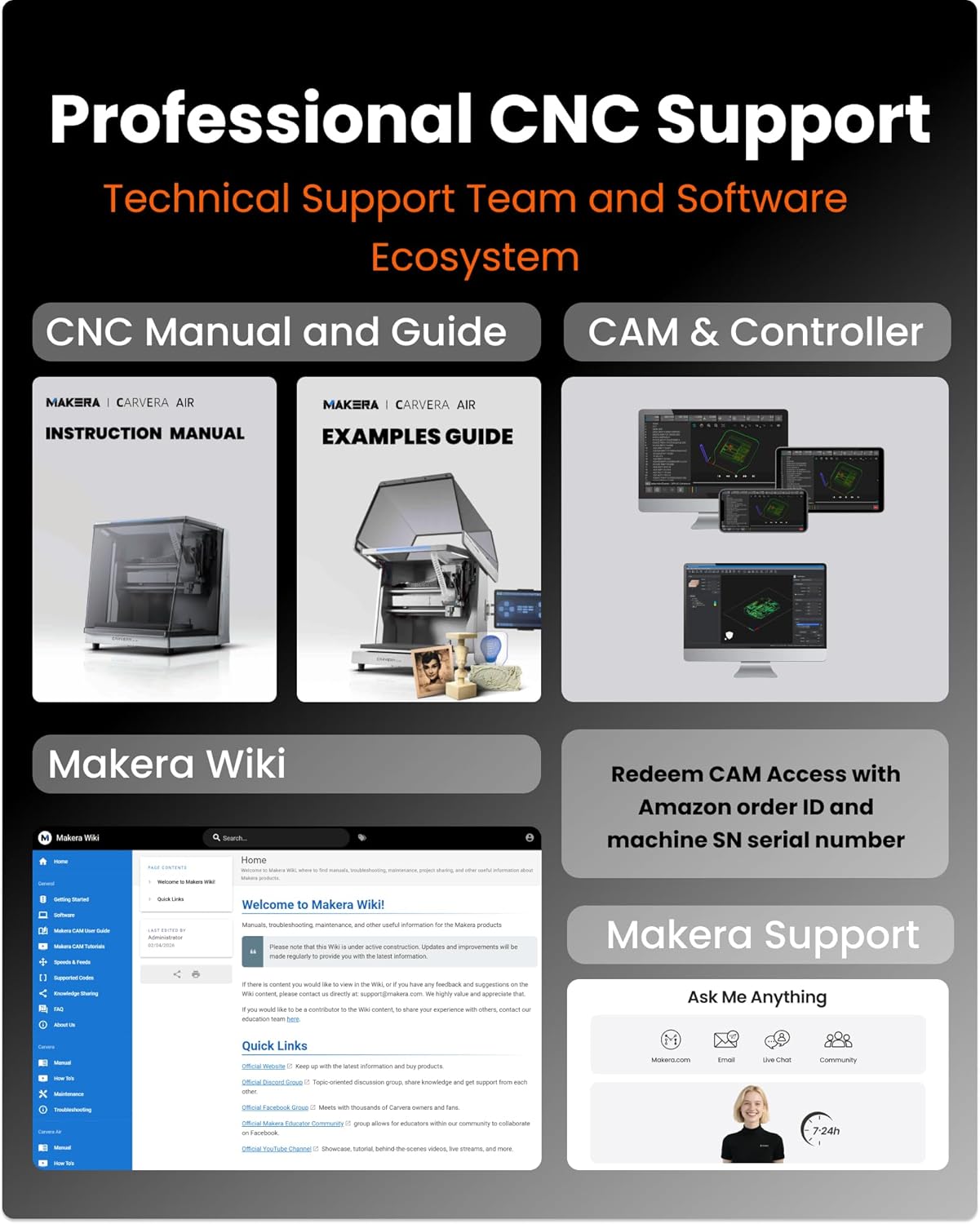
The Carvera Air comes with a one-year warranty covering manufacturing defects. MAKERA CARVERA support is reachable via email and their website. I did not need to use it during testing, but forum posts suggest response times vary from 24 hours to several days. The warranty explicitly excludes damage from improper use, using unapproved bits, or running the machine at speeds outside the documented range. If you buy from Amazon (the verified retailer), returns are handled by Amazon within 30 days. Buying grey-market from third-party sellers voids the warranty, so the only safe purchase channel is through the Carvera Air review link on Amazon or MAKERA CARVERA directly. The Carvera Air review honest opinion on support: adequate for warranty claims, but do not expect hand-holding on setup questions.
Eight weeks of use confirmed that the Carvera Air delivers on its core promise: automated multi-step machining in a compact, enclosed package. The tool changer and 4th axis work reliably when set up correctly. The software is the weakest link — functional but not polished. The work area is the hard limit that will send some users to competitors. Overall, the MAKERA CARVERA Carvera Air review conclusion is that this machine does what it claims to, with caveats on software maturity and Z-axis height.
Worth buying if your primary work involves PCB prototyping, small 3D parts, and cylindrical components, and if you value the automation features enough to work around the software quirks and small work area. Not worth buying if you need a larger bed, want a proven industrial-grade software ecosystem, or plan to cut thick stock regularly. I rate it 4 out of 5 — docked one point for software reliability and Z-height limitations.
If you have owned the Carvera Air for more than a few months, I am curious: has the software improved with updates, or did you switch to an alternative workflow entirely? Drop a comment below and share your experience — specifically how you handle the Z-height constraint for your projects. And if you are still deciding, check the is MAKERA CARVERA Carvera Air worth buying details on Amazon to see the latest deals.
At USD 3,146, you get a machine with automated tool changing, an enclosure, and a 4th axis. That combination does not exist elsewhere under USD 4,000. If you use those features — specifically for PCB work and small 3D parts — the price is justified. If you only need basic CNC routing, the Nomad 3 at USD 2,499 gives you a larger work area and better software for less money.
The Bantam Tools machine costs about USD 1,800 more and has no tool changer or 4th axis. It wins on software reliability and support. The Carvera Air wins on automation and features for the price. For hobbyist PCB work, the Carvera Air is better value. For production PCB work where downtime costs money, the Bantam Tools machine is the safer choice.
If you have never used a CNC, plan on a full afternoon. You need to read the manual, align the tool carousel, install the software, and learn the basics of CAM toolpaths. The machine itself is not hard to assemble — about an hour for the physical setup — but the learning curve for the software is steeper than advertised. If you know Fusion360 or VCarve Pro, you will find it easier.
You need a computer with USB port, a longer USB cable if your desk layout demands it, collets for bit sizes other than 1/8 inch, and workholding clamps for non-PCB materials. For the 4th axis, you will likely need a Carvera Air review accessory kit for rotary work. A dust collector is optional but helpful for wood cutting.
One year, covering manufacturing defects. Does not cover wear items like collets, bits, or the spindle bearings. Support is email-based and response times vary. I did not need to use it during testing, so this is based on forum reports — most users found support helpful for warranty claims but slow for technical questions.
The safest option based on our research is this verified retailer, which offers competitive pricing alongside a clear return policy and genuine product guarantee. Buying directly from MAKERA CARVERA is also safe, but shipping times may be longer if the unit ships from China.
Yes, with light passes. I cut 6061 aluminum at 0.005-inch depth of cut per pass with a 1/8-inch end mill at 12,000 RPM. The spindle handled it without stalling, and surface finish was acceptable with WD-40 as a lubricant. Do not expect heavy stock removal — it is a desktop machine, not a mill.